
If you’ve never opened a PC case before, the idea of building your own can feel like it’s for other people — the ones who already know what a motherboard looks like. It isn’t. This guide on how to build your first gaming PC assumes you’re starting from zero, and it explains every part by name before asking you to touch it. By the end, you’ll have a working machine and you’ll actually understand what you built.
Direct Answer: To build your first gaming PC, you install the CPU and RAM onto the motherboard, mount the motherboard in the case, add storage and the power supply, install the graphics card, connect the cables, then power it on and install your operating system and drivers. Each part has one correct slot, so mismatched connectors are hard to force by accident.
How to Build Your First Gaming PC: What This Guide Covers
This guide explains how to build your first gaming PC from an empty case to a fully working machine, one labeled step at a time. Every part gets explained before you touch it, so you always know what you are doing and why it matters before moving to the next step. Browse more hands-on build and setup guides on BuyAdsMedia as you go.
What You’ll Need
- Phillips #2 screwdriver (magnetic tip helps keep screws from rolling away)
- A clean, flat, well-lit workspace — a kitchen table works fine
- Anti-static wrist strap (optional for a first build, but it removes one thing to worry about)
- Your parts: CPU, motherboard, RAM, storage drive, power supply, graphics card, case
- The printed or PDF manual that came with your motherboard and case
- 90 uninterrupted minutes
Step 1 — Prep Your Workspace Before You Open Anything
Clear a flat surface, ideally not carpet — static electricity builds up more easily on carpet, and a small static discharge can damage a computer chip you can’t see or feel happening. Touch a metal, unpainted part of your case (or wear an anti-static wrist strap) before handling any component.
Why this matters: computer parts are more sensitive to static than most electronics you’ve handled before. One avoidable mistake here can cost you a part, so thirty seconds of precaution is worth it.
Step 2 — Know the Parts in Front of You
Before anything gets installed, here’s what each piece actually does:
- CPU (Central Processing Unit): the “brain” of the computer — it carries out instructions and does most of the general thinking the computer needs to do.
- Motherboard: the large circuit board that every other part plugs into. Think of it as the switchboard connecting everything.
- RAM (Random Access Memory): short-term memory the computer uses while it’s running. More RAM means it can juggle more things at once without slowing down.
- Storage drive (SSD): where your files, games, and operating system live permanently, even when the power is off. An SSD (Solid State Drive) is the fast, no-moving-parts version most new builds use today.
- PSU (Power Supply Unit): converts the electricity from your wall outlet into the specific power every other part needs.
- GPU (Graphics card): renders the images you see on screen — the single biggest factor in gaming performance.
- Case: the metal-and-plastic box that holds and protects everything above.
Why this matters: once you know what each part is for, every step below makes sense as “connect A to B for reason C” instead of a list of instructions to memorize.
Step 3 — Install the CPU on the Motherboard
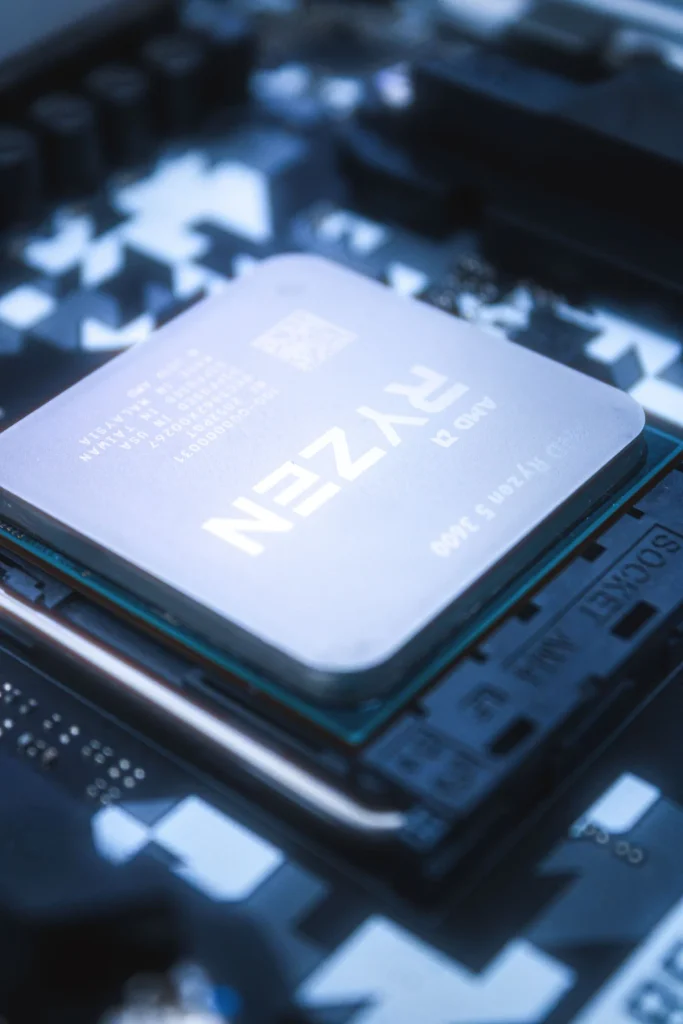
Lay the motherboard on top of its box (the foam inside protects it). Lift the small metal retention arm next to the CPU socket, align the gold triangle on the corner of your CPU with the matching triangle on the socket, and lower it straight down without pressing. Close the retention arm, which will meet some resistance — that resistance is normal and means it’s seating correctly.
Why this matters: the CPU only fits one way. Forcing it in the wrong orientation can bend the delicate pins on the socket, so alignment matters more than speed here.
Step 4 — Install the RAM
Open the clips on either end of a RAM slot (check your manual for which slots to use first — it usually matters for performance, not only availability). Line up the notch on the RAM stick with the notch in the slot, then press straight down evenly on both ends until the clips snap closed on their own.
Why this matters: RAM only clicks in fully when it’s aligned correctly, so if you’re pushing hard and nothing’s happening, stop and recheck the notch rather than forcing it.
Step 5 — Install the Storage Drive
If you’re using an M.2 SSD, it lies flat and screws directly into a slot on the motherboard — insert it at an angle, then press it down flat and secure the small screw. If you’re using a 2.5-inch SATA SSD instead, it mounts in a drive bay inside the case and connects via two separate cables later, in Step 9.
Why this matters: M.2 and SATA drives install completely differently, so check which type you bought before assuming the steps above apply.
Step 6 — Mount the Motherboard in the Case
Your case has small raised metal standoffs that match the screw holes on your motherboard. Lower the motherboard in at a slight angle to clear the rear port opening, line up the screw holes with the standoffs, and secure it with the screws that came with your case.
Why this matters: the standoffs keep the motherboard from touching the metal case directly, which would cause a short circuit. If a screw hole doesn’t line up, don’t force a screw — double check the orientation instead.
Step 7 — Install the Power Supply
Most cases have a dedicated bracket near the bottom or top rear of the case. Slide the PSU in with its fan facing the direction your case design expects (check your case manual — it varies), and secure it with the four screws provided.
Why this matters: PSU orientation affects how it draws in cool air, so getting this backwards won’t stop your PC from working, but it will run hotter than it should.If you want to understand exactly what this component does before installing it, Wikipedia’s overview of the power supply unit is a solid starting point.
Step 8 — Install the Graphics Card
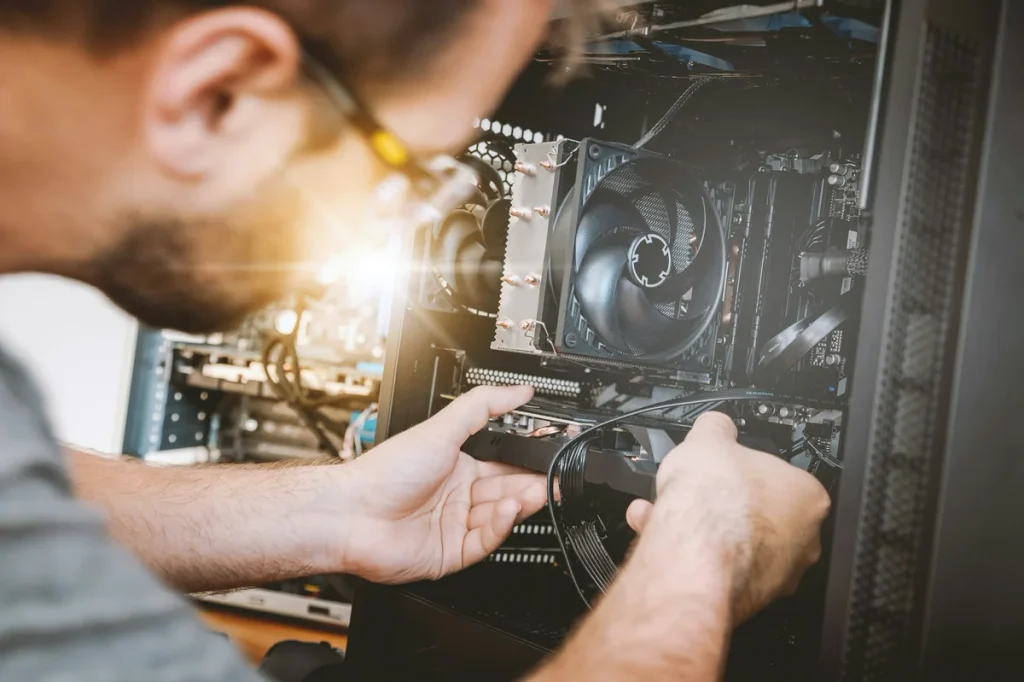
Remove the matching metal slot covers on the back of your case. Open the retention latch on the long PCIe slot (the longest slot on your motherboard), align the card’s gold connector with the slot, and press down firmly and evenly until the latch clicks shut on its own.
Why this matters: a GPU that isn’t fully seated can cause the whole system to fail to turn on, and the click of the latch is your confirmation that it’s seated all the way.
Step 9 — Connect the Cables
This step has the most individual connections, so we’re covering the two that matter most for getting your PC to turn on at all: the 24-pin cable from the PSU to the motherboard, and the CPU power cable (usually 4 or 8 pins) from the PSU to a separate socket near the CPU. Both connectors are shaped so they only fit one way.
Why this matters: skip either of these two connections and your PC won’t power on at all, even though everything else is installed correctly. A full breakdown of every cable and how to route them neatly lives in its own guide — keep an eye out for it if you want your case to look as clean inside as it works.
Step 10 — Power On and Check for POST
Plug in the PSU, flip its rear power switch on, and press the power button on your case. Watch for fans spinning and listen for a single beep if your motherboard has a speaker — this is called POST (Power-On Self-Test), the computer’s way of confirming its core parts are talking to each other before anything else loads.
Why this matters: POST happens before any operating system loads, so seeing it succeed confirms your hardware is wired correctly — independent of anything you’ll install next.
Step 11 — Install Your Operating System and Drivers
With POST confirmed, connect a keyboard, mouse, and monitor, then boot from a USB drive containing your operating system installer to set it up. Once installed, download the latest drivers — small pieces of software that let your operating system actually communicate with your specific GPU and motherboard — directly from the manufacturer’s website rather than using whatever came in the box.
Why this matters: an operating system without the right drivers will run, but your graphics card won’t perform anywhere near what it’s capable of until its driver is installed.That completes everything involved in how to build your first gaming PC — the machine in front of you is ready to power on and start installing games.
Frequently Asked Questions
Do I need to know how to code to build a gaming PC? No. Building a PC is physical assembly, closer to snapping together labeled pieces than writing software — no programming knowledge comes into play at any point in the process you completed above.
What happens if I plug something in wrong? Almost nothing bad happens, because most connectors on a motherboard are shaped so they only fit one way. If a part doesn’t slide into its slot without force, stop and check your manual before pushing harder — forcing a connector is the one real risk.
How long does a first build actually take? Budget 90 minutes to two hours for your first build, including the time spent double-checking each step against this guide. Experienced builders finish the same build in under 30 minutes, but you’re not racing anyone on your first attempt.
Pingback: How to Install a CPU: 5 Steps to Get It Right