
If there is one moment in your first build that makes people hesitate with the part held in mid-air, it is this one. Knowing how to install a CPU is mostly about trusting two small alignment markers rather than how much pressure you use. The CPU is the most expensive single piece you have touched so far, and the socket underneath it is covered in pins that look like they could bend if you so much as breathe on them. That hesitation is normal, and it fades fast once you know what you are actually doing.
Installing a CPU means aligning the small gold triangle on the chip with the matching triangle on the motherboard socket, lowering it straight down without forcing it, then closing the socket lever. Getting the orientation right matters more than pressing hard — a correctly aligned CPU drops into place with almost no pressure at all. This guide walks through each part of that process on its own, since the full build guide only has room to cover it in a few lines.
What You’ll Need
- Your motherboard, outside the case, sitting on its anti-static box or bag
- Your CPU, kept in its plastic clamshell until the moment you are ready to install it
- A clean, static-safe surface — a wooden table or the motherboard’s own box both work fine
Before You Begin: Getting Static-Safe
Static electricity is invisible, and a small discharge from your body can damage a CPU without you ever feeling a shock (see how electrostatic discharge works for more on why this matters). Before opening the clamshell, touch an unpainted metal surface — the case of a plugged-in (but switched off) power supply works well — to discharge any static you are carrying. Avoid working on carpet, and avoid wearing socks that generate static as you move around.
How to Install a CPU: Start With the Alignment Marker
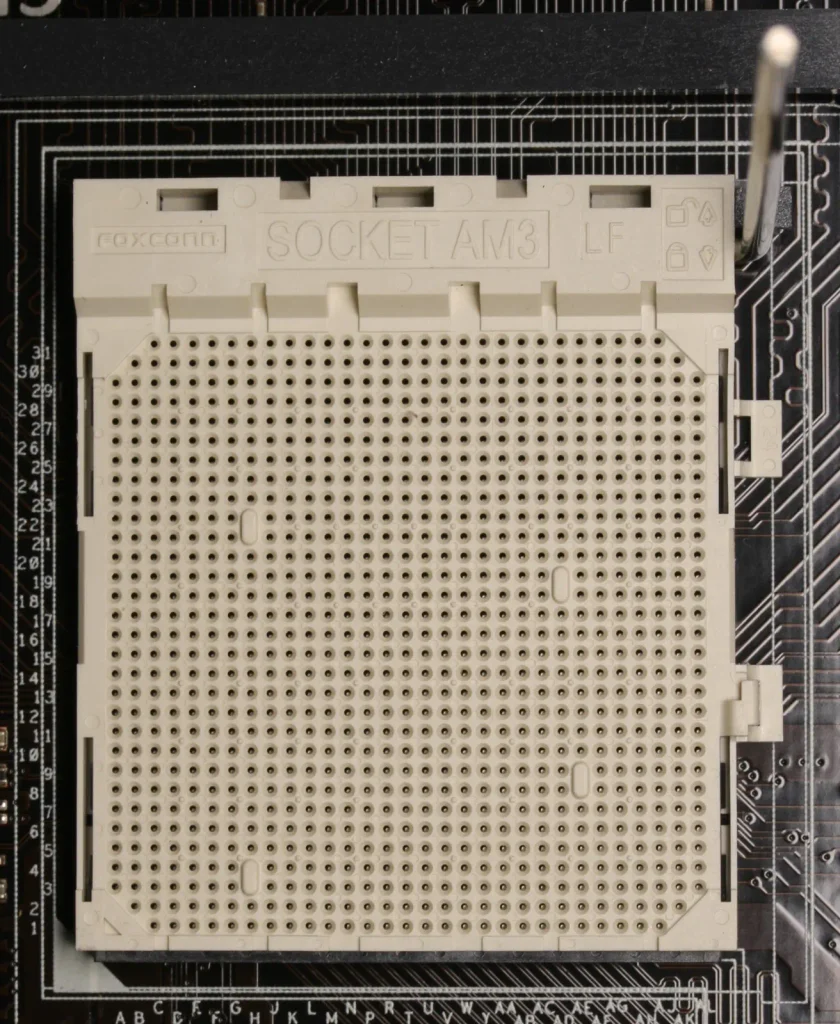
This is where you actually learn how to install a CPU correctly: every CPU has a small triangle printed in one corner, usually gold or silver. The motherboard socket has a matching triangle printed on its frame. These two triangles are the only orientation guide you need: when they point at each other, the CPU is facing the right way. Pick the CPU up by its edges, never by its underside or top surface, and hold it so you can see the triangle clearly.
Opening the Socket
Most desktop sockets use a metal retention lever next to the socket frame. Push the lever down and slightly outward to release it from its clip, then lift it until it stands upright. On some boards, a plastic protective cover sits over the socket and pops off at the same time — set it aside, you will not need it again unless you plan to remove the CPU later.
Lowering the CPU Into Place
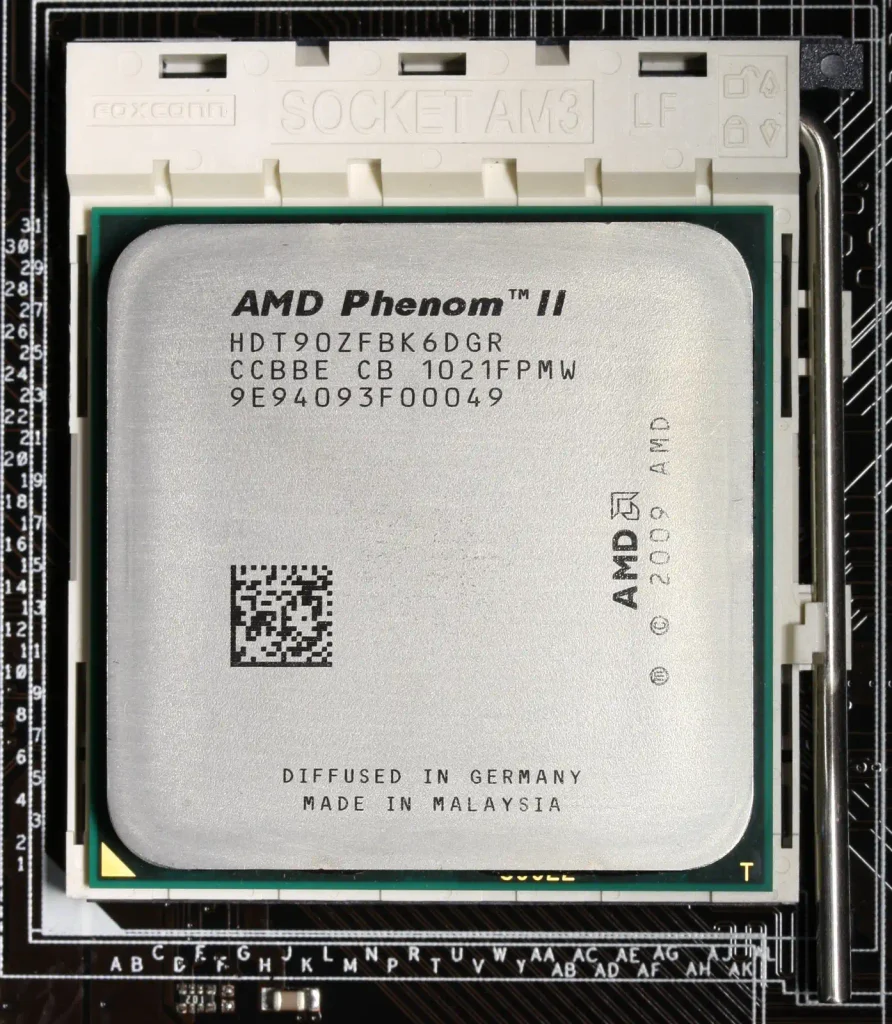
With the triangle on the CPU lined up against the triangle on the socket, lower the chip straight down into the socket frame. Do not slide it sideways or tilt it in at an angle. A correctly aligned CPU will settle into the frame under its own weight, sitting flush with no visible gap or lift on any edge. If it does not sit flat right away, lift it straight back out, recheck the alignment, and try again rather than pressing down.
Closing the Lever and Confirming the Fit
Once the CPU sits flush, lower the retention lever back down and clip it back under its retention tab. You will feel some resistance as the lever passes over the CPU — that resistance is normal and is the socket mechanism gripping the chip, not a sign that something is wrong. A correctly seated CPU allows the lever to close fully and click back into its locked position.
Mistakes That Bend Pins (and How to Avoid Them)
Almost every bent-pin story starts the same way: forcing a CPU that was not aligned correctly. Knowing how to install a CPU correctly from the start avoids this entirely — if the chip will not drop into the socket on its own, something is wrong with the orientation, not with how hard you are pressing. Set the CPU down somewhere safe, double-check the triangle marker, and try again. The second most common mistake is touching the socket pins directly while opening or closing the lever — keep your fingers on the lever itself and on the edges of the CPU only.
Now that you know how to install a CPU correctly, you are ready to move on to the next part of the build. The complete beginner’s build guide covers what comes after this: installing RAM, mounting the motherboard in the case, and everything else needed to get your first gaming PC running.
Frequently Asked Questions
Do I need to apply thermal paste before installing the CPU itself?
No. Thermal paste goes on after the CPU is seated and locked in place, right before you attach the cooler. Adding it earlier just means it gets smudged while you are still handling the board.
What happens if I install the CPU the wrong way?
If the alignment markers do not line up, the CPU will not sit flat in the socket, and forcing it is exactly what bends pins. If it does not drop in with almost no pressure, stop and check the alignment triangle again.
Can touching the CPU pins damage them even if I am careful?
Yes. The pins on the motherboard socket are thin and easy to bend with a fingertip. Always hold the CPU by its edges, and never touch the gold contacts or the socket pins directly.